
Media Links
PubML™ eBooks include media links that display combiantions of images, videos, and Google maps. For example, if a reader clicks on the name of a place, an overlay showing a map of that location, photographs, and video clips can offer a rich media portrait that enhances the descriptions in the text.
Before <PubML>™, rich media eBooks were cluttered. By hiding the maps, photos, and videos in a layer that the reader can invoke with a click, the text becomes the primary medium. After all, this is a book!
Footnote links appear in <PubML>™ eBook text with a dashed underline. Media links appear with a solid underline.
The Media Manager invoked by the Media tab may look confusing at first glance but it's deliciously simple once you understand a few concepts.

On the left side of the screen are Media Sources. These include individual Google Maps, individual images, YouTube Playlists (that can include multiple videos or just one), and image sets hosted on Flickr.com.
On the right side of the screen are Media Groups. These are groups of one or more media sources that are linked to your eBook's text.
Here's an example:
In my book, I mention the Abaco Blue Hole, a "lake" in the middle of an island that goes down hundreds of feet, then turns and continues.
In my (free) Google account, I made a custom map, and labeled the Abaco Blue Hole.
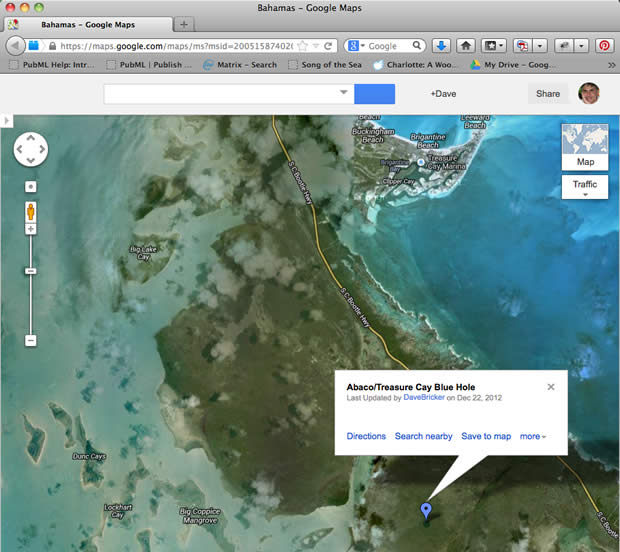
See the link in the address bar of the web browser? Copy that link and then return to the Media Manager. (I like to keep it open in a separate window or tab).
Beneath the list of Media Sources is a button: Add New Media Source. Click that button and paste in your link. The <PubML>™™ tools are smart. They can tell the difference between a photo, map, or video, and will assign a category and icon to your media source automagically. Each Media Source will display the appropriate icon for its media type. Use the checkboxes at the top of the Media Source list to filter what types of media you wish to show or hide.
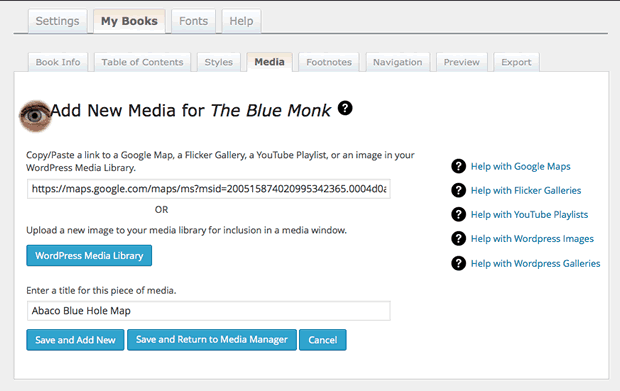
Note: You can also add links to images in your WordPress Media Library using the button provided in the Add New Media screen.
Save the link to your Google Map and either return to the Media Manager or add another link. In this case, I also have photographs of the Abaco Blue Hole organized in a set on Flickr. Flickr image hosting offers quite a bit of free image hosting space and offers unlimited storage at affordable prices. Flickr allows you to organize images into sets.
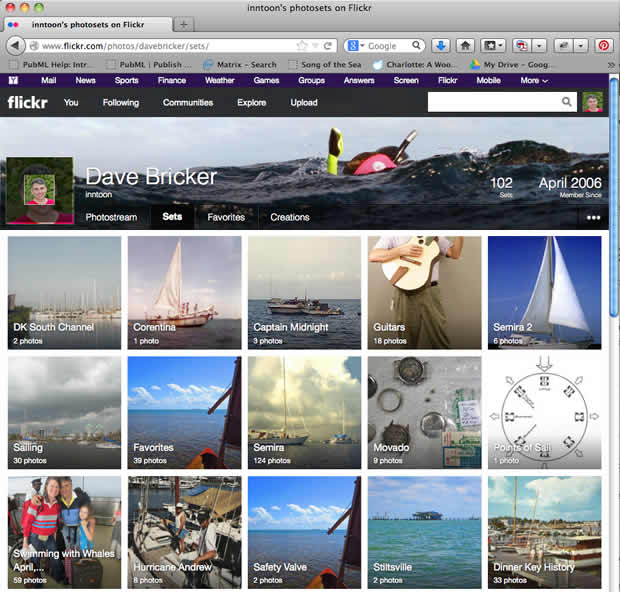
Here's the set I want to embed in my <PubML>™ eBook:
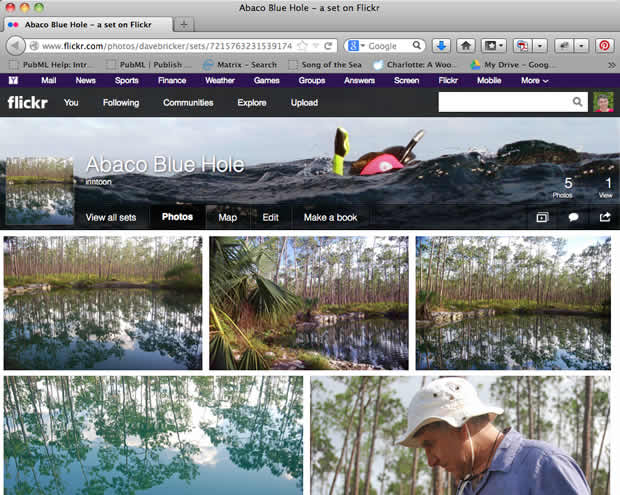
As before, I copy and paste the link into the Add New Media Source screen.
Next, I'll create a Media Group using the form at the bottom of the Media Groups column on the right side. My map and images all have to do with the Abaco Blue Hole so that's what I'll name my group.
Returning to the left side, I select a media source on the left and the checkboxes one or more media groups on the right to associate with it. When both sides are selected, click the Associate Media button. Notice the numbers after the media group names? They tell you how many sources are linked to that group.
Note: If a Media Group has a (0) after it, you know it's an empty container that doesn't have any media sources associated with it yet.
Click on a Media Source on the left side. The checkboxes next to any associated Media Groups will show as selected.
Click on a Media Group on the right side. Any associated Media Sources will light up on the left.
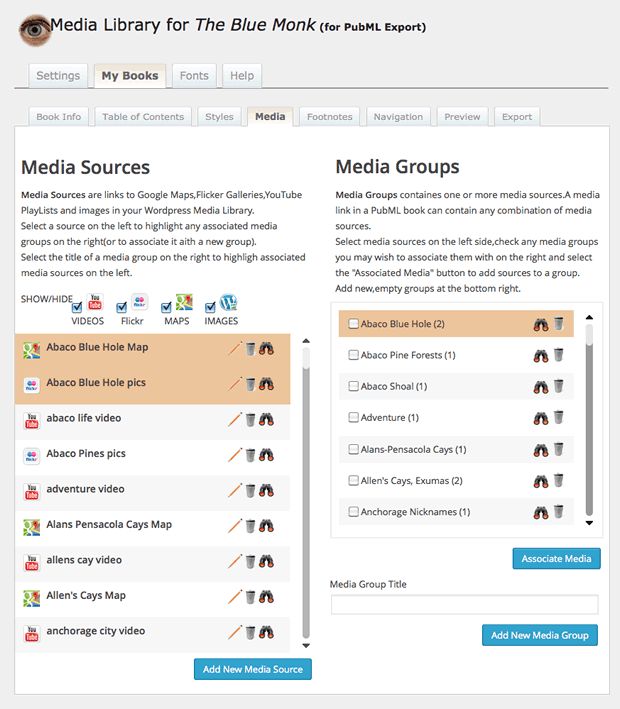
Use the pencil icon to edit a Media Source. Use the trash cans or binoculars icons to delete or preview a Media Source or a Media Group.
Here's the preview of the Abaco Blue Hole Media Group. The map shows up first anf thumbnails at the top will load the images from Flickr.
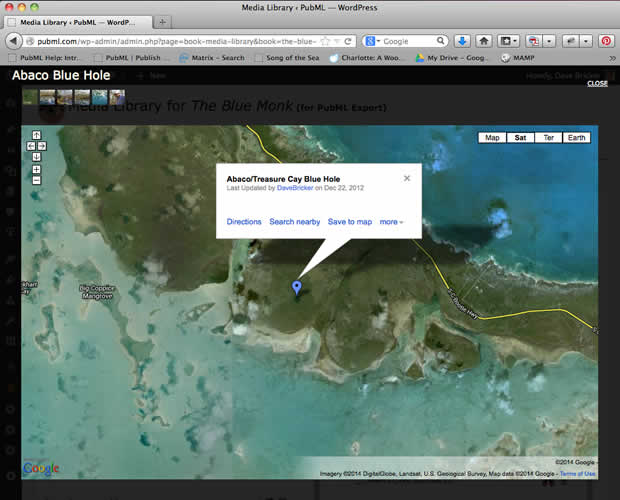
The Abaco Blue Hole Media Group has only photos and a map. Here's the YouTube playlist preview for "Abaco Life Video":
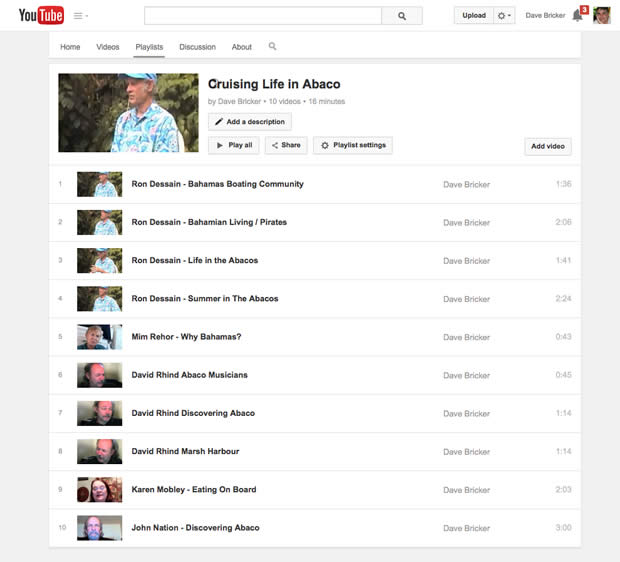
Same drill: Copy/paste the link and name the Media Source.
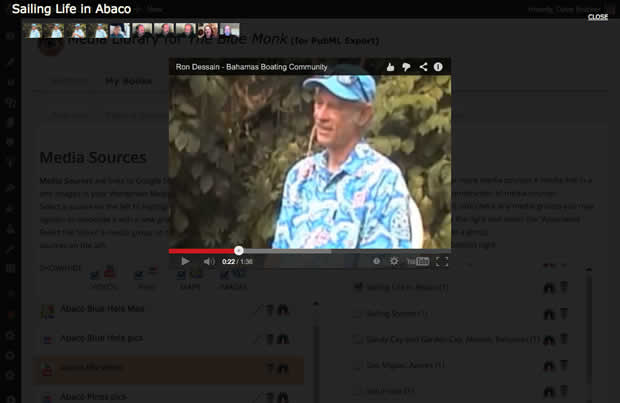
Select the Abaco Life Video Media Source and create a media group on the right called "Sailing Life in Abaco." Associate the Media Source with the Media group.

Then preview the Media Group. The first video loads and the others appear as thumbnails—exactly as they will in your <PubML>™ eBook.
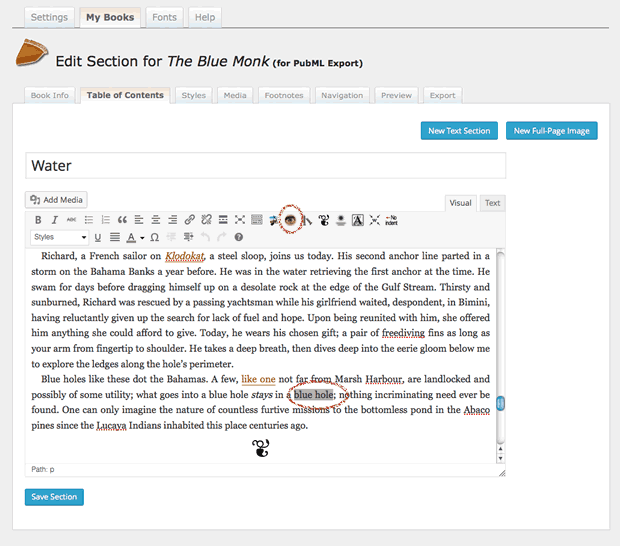
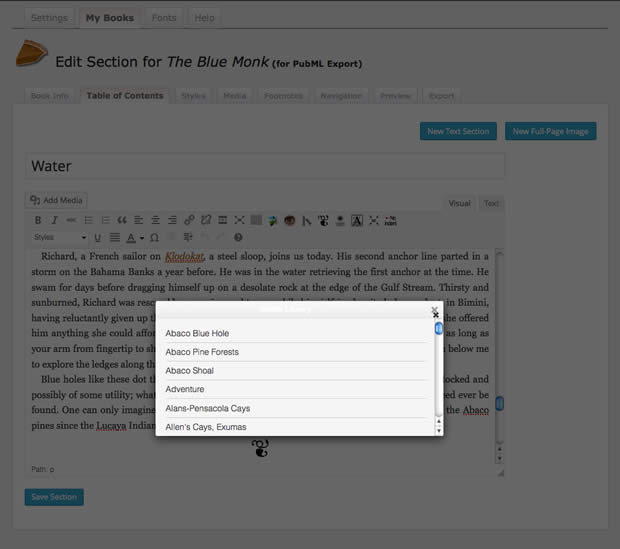
To add a media link into your text, highlight a word or phrase in the section editor. Then click the "Add Media Link" button (the eye) in the toolbar to reveal a list of your media groups.
Note: If you delete a Media Group from the list, any links to that Media Group in your text will not be deleted automatically. To prevent broken media links in your eBook, be sure to manually unlink any links to deleted media (using the broken link icon).