
Photo Footnotes
Footnotes in <PubML>™ books aren't really footnotes in the traditional sense. Instead of sitting at the foot of the page, the notes pop up over the text on a "card" containing a photo and description. The same footnote can be used multiple times in a single book. If you introduce a term in chapter 1 and then use it again in chapter 6, add a footnote link both times. Readers can ignore the link if they wish, but if they've forgotten what it means, they can refresh their memories with a single click.
Footnote links appear in <PubML>™ eBook text with a dashed underline. Media links appear with a solid underline.
Note: Footnotes and associated images are exported with <PubML>™ eBooks. Keep images as small as possible to avoid bloating the eBook's file size.
Click the Footnotes tab to access the list of footnotes associated with a particular book.
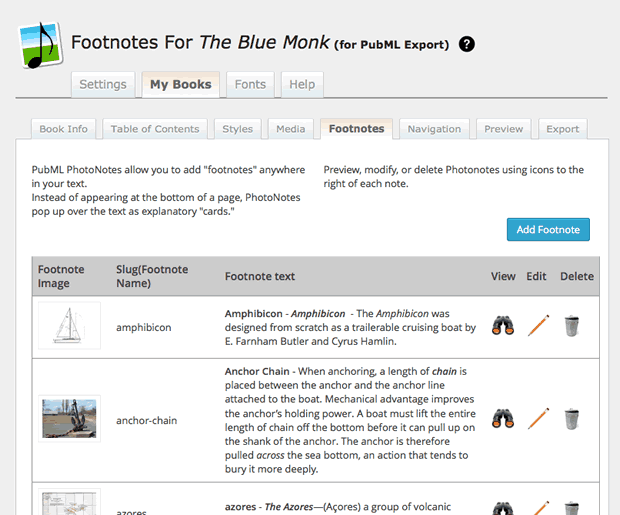
Click the Add Footnote button to add a new footnote to your library. The footnote editor will open and allow you to add a title, description, and image. If you don't upload an image, a default <PubML>™ background image will appear.
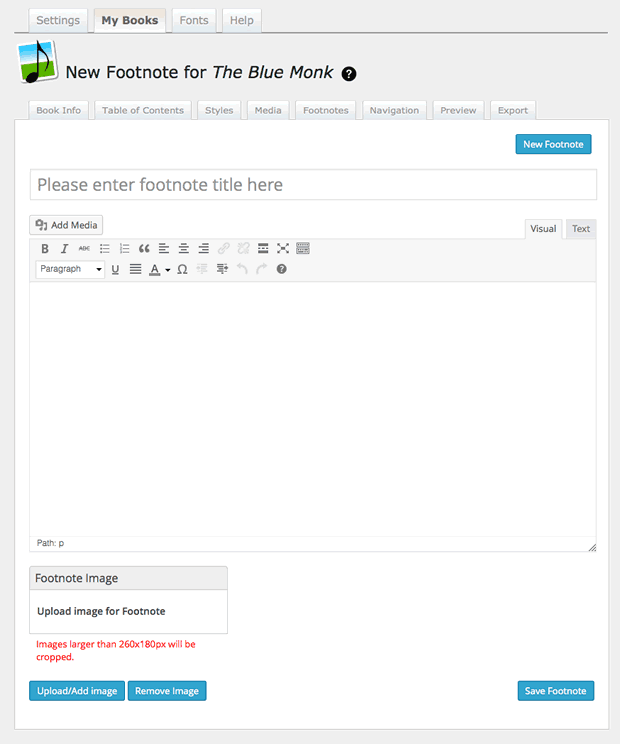
Note: The footnote's title is for internal use in the footnote library. It is not displayed when the footnote opens. Keep titles simple and descriptive.
Note: Footnote images are of a fixed size: 260x180px. Size and crop footnote images before uploading or they'll be cropped to size automatically—and not necessarily in a desirable way.
To preview a footnote after you've created it, return to the Footnotes list and click the Preview (binoculars) icon. click outside the footnote to hide it again.
Note: Footnotes are not exported with ePub eBooks. The only work with <PubML>™ eBooks in the web browser.
To add a footnote link in the text of your book, highlight a word or phrase in the section editor and then click the "Add Photo Note" icon in the toolbar. A list of your Footnotes will appear for you to choose from. Select from the list and the footnote will be linked to your text.